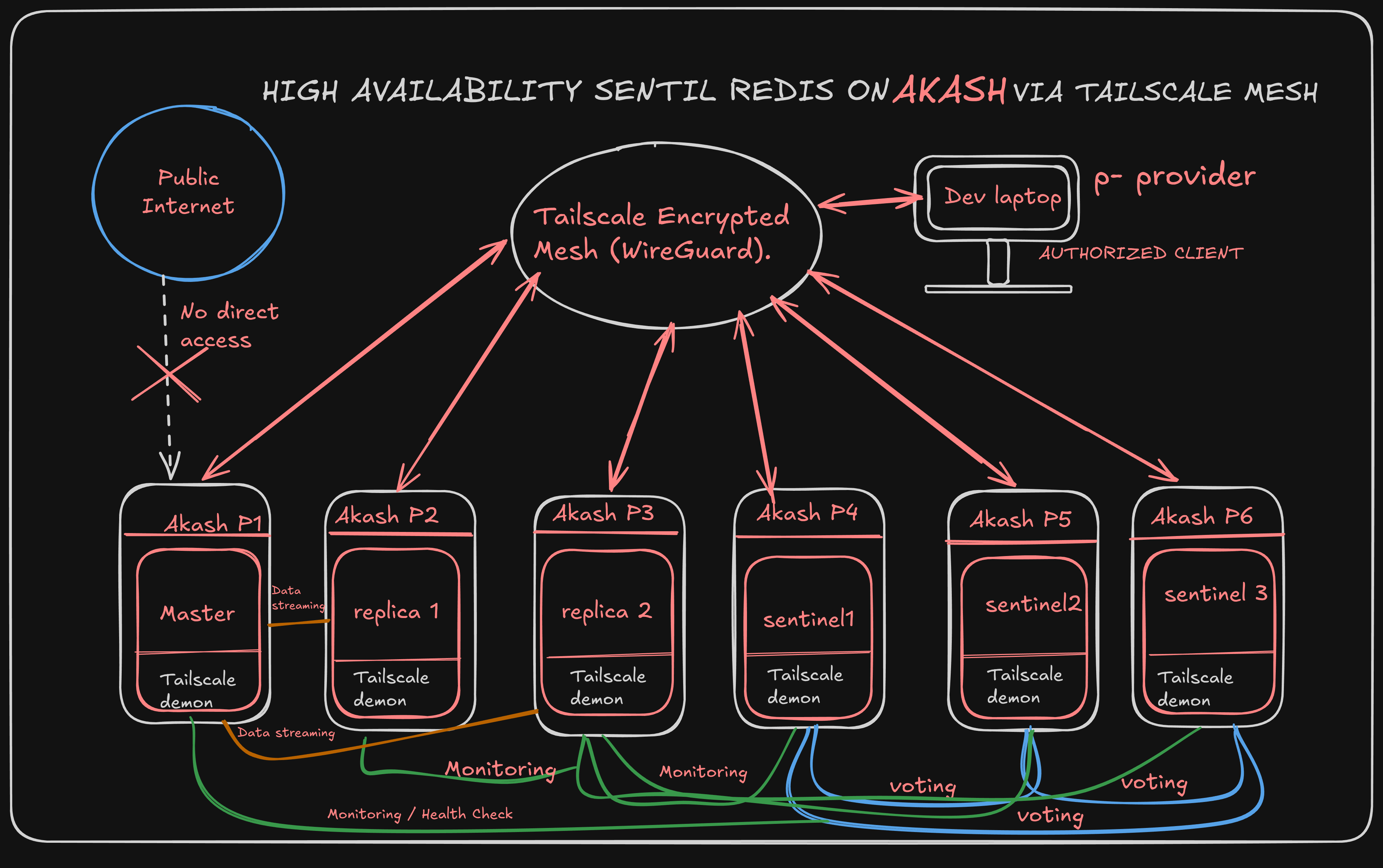
Deploying Redis on Akash Network: Save Over 90% on Cloud Costs

If you are running a Redis server on traditional cloud providers like Azure, AWS, or GCP, you might be overpaying for resources.
In this guide, I’ll walk you through how to deploy a Redis server on the Akash Network — a decentralized cloud computing marketplace. By the end of this tutorial, you will see how we achieved a running cost of just \(1.98/month, compared to \)20-$40/month on major platforms.
Let’s get started.
Why Akash?
Before we deploy, let’s look at the numbers.
Traditional Cloud (e.g., Azure): A standard instance with ~1GB RAM often costs between $16 and $40 per month.
Akash Network: For superior specs (1 CPU, 1GI RAM), we secured a deal for $1.98 per month.
That is a massive difference for the exact same utility.
Step 1: Access the Console
First, navigate to the Akash Console → https://console.akash.network
- Click Sign In
Press enter or click to view image in full size
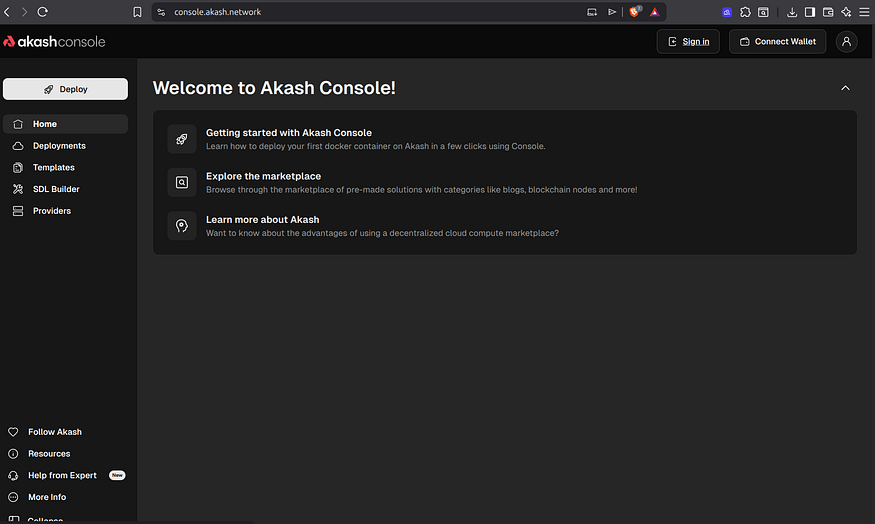
Get $100 free credits (for first-time users)
Click Sign Up using Gmail or email.
Verify your email and add your credit card to activate the credits.
Log in to your account.
Click Deploy.
Select Run Custom Container.
Step 2: Configure the Deployment (SDL)
Now need to define our Docker image and resource requirements. You can use the SDL Builder or edit the Yaml (SDL) directly.
The Configuration:
Image:
redis:8.4(Or your preferred version)Port:
6379CPU:
1.0Memory:
1GiPort 6379
Ephimeral Storage(temporary) :
1GiWe also need to set a password for security so unauthorized users cannot access our cache. We do this by passing a command
- sh
- "-c"
- redis-server --appendonly yes --requirepass Test@123
Press enter or click to view image in full size

---
version: "2.0"
services:
  redis:
    image: redis:8.4
    expose:
      - port: 6379
        as: 6379
        to:
          - global: true
    command:
      - sh
      - "-c"
      - redis-server --appendonly yes --requirepass Test@123
profiles:
  compute:
    redis:
      resources:
        cpu:
          units: 1
        memory:
          size: 1Gi
        storage:
          - size: 1Gi
  placement:
    dcloud:
      pricing:
        redis:
          denom: ibc/170C677610AC31DF0904FFE09CD3B5C657492170E7E52372E48756B71E56F2F1
          amount: 100000
      signedBy:
        anyOf:
          - akash1365yvmc4s7awdyj3n2sav7xfx76adc6dnmlx63
        allOf: []
deployment:
  redis:
    dcloud:
      profile: redis
      count: 1
Here is the clean YAML (SDL) file . You can copy-paste this into the Yaml editor
*(*Note: Change test@123 to a secure, strong password before deploying!)
Step 3: Deployment & Bidding
Deposit Funds: To create a deployment, you need to have at least $5 in an escrow account.
Click Create Deployment.
Choose a Provider: Akash is a cloud marketplace. Once you request resources, providers will bid on your workload.
Wait a moment for bids to come in.
In our example, we found a provider offering 100**% uptime** and a monthly cost of roughly $1.98
Press enter or click to view image in full size
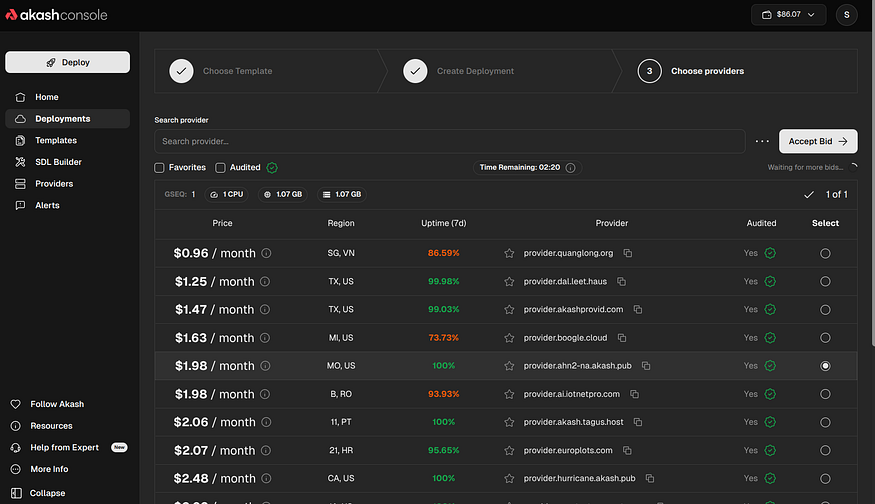
4**. Accept Bid:** Select the provider and approve the transaction.
Step 4: Verification
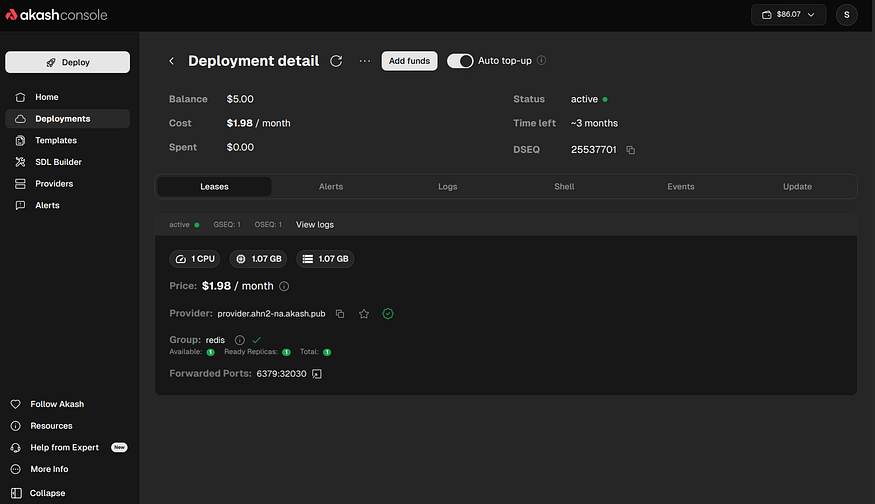
Once the container status shows Active, verify that Redis is running correctly.
. Check Logs
Go to the Logs tab in the dashboard.
You should see Redis starting up and ready to accept connections.
. Install Redis CLI (if not installed)
On Ubuntu:
sudo apt install redis-tools
On macOS:
brew install redis
Get your Host and Port from the Leases section.
Provider → Host
External Port → Port
Once the container status shows Active, verify that Redis is running correctly.
Press enter or click to view image in full size
From your local machine terminal, test the Redis instance using redis-cli
redis-cli -h provider.ahn2-na.akash.pub -p 32030 -a Test@123
If successful, you should be connected.
Press enter or click to view image in full size
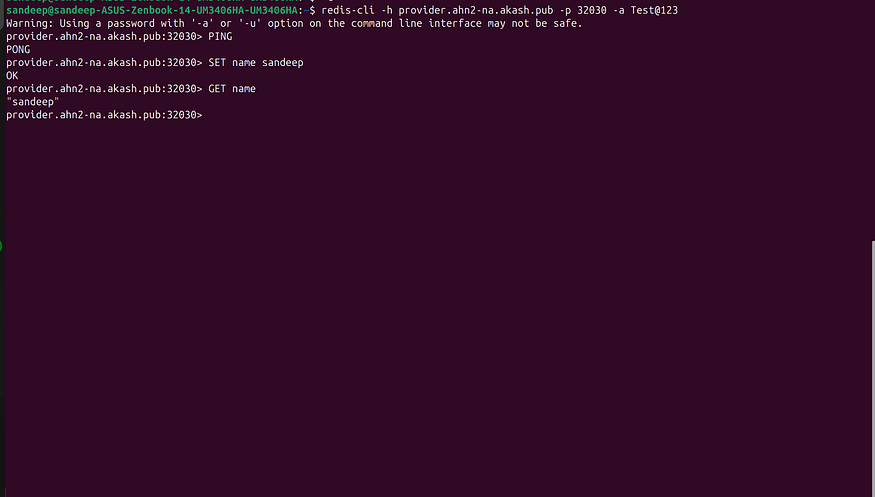
We successfully deployed a robust Redis instance with 1CPUs and 1Gi RAM
Pricing compare (1 Gi redis cache per month)
Press enter or click to view image in full size
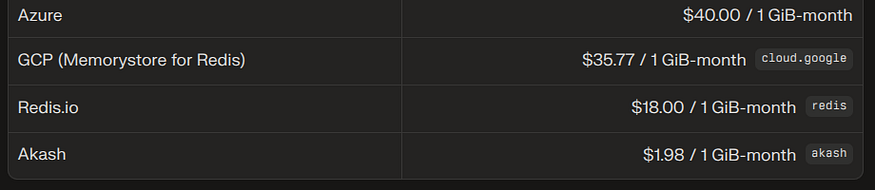
The setup took under five minutes, required no complicated contracts, and cut our infrastructure costs by more than 90%. If you’re trying to reduce your DevOps spend, migrating stateless workloads like Redis to Akash is an easy win.